How to Change Crosshair in CS2? Complete Settings Guide
 •
•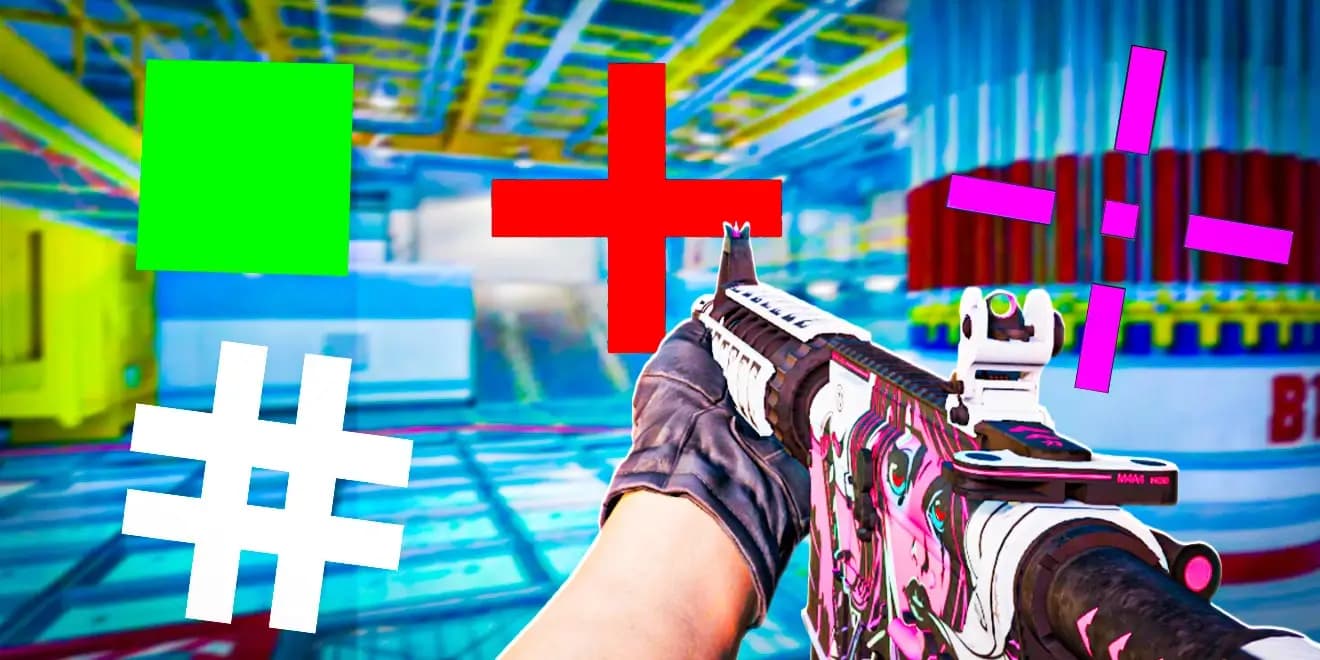
How to change crosshair in CS2?
You can change your crosshair in CS2 directly in the game settings, by importing a crosshair code, or by using console commands. The easiest method is to open the settings, go to the Game tab, and then enter the Crosshair section. There you can change the crosshair style, color, size, thickness, gap, center dot, outline, and transparency.
In CS2, the crosshair is extremely important because it affects duel visibility, first-shot accuracy, and comfort when holding angles. It will not automatically improve your aim, but a well-set crosshair helps you notice the center of the screen faster, control recoil more easily, and take fights with more confidence at different distances.
Based on our expertise, the best CS2 crosshair is not the one used by a famous pro player, but the one that stays visible on most maps, does not cover the enemy, and lets you hit your first bullets consistently.
How to change crosshair in CS2 step by step
The easiest method does not require any commands. You only need to use the game menu.
-
Launch CS2.
-
Click the settings icon.
-
Open the Game tab.
-
Go to the Crosshair section.
-
Adjust the crosshair parameters.
-
Check the crosshair preview on screen.
-
Enter a practice map or deathmatch.
-
Test the crosshair in real gameplay.
This is the safest method for beginners because you can immediately see how each change affects the crosshair. In guides and crosshair databases, the usual path is the same: game settings, Game tab, Crosshair section, and the Share or Import option for crosshair codes.
How to import a crosshair code in CS2
Crosshair codes allow you to quickly copy ready-made settings from another player. This is the most convenient method if you want to test a pro player’s crosshair, a friend’s crosshair, or a setup found in a guide.
-
Copy the CS2 crosshair code.
-
Launch CS2.
-
Open the settings.
-
Go to Game.
-
Open the Crosshair section.
-
Click Share or Import.
-
Paste the code into the correct field.
-
Click Import.
-
Enter a practice map and check whether the crosshair feels right.
A crosshair code is a fast way to transfer the entire setup without manually rewriting size, color, thickness, gap, and other values.
How to export your own crosshair in CS2
Exporting your crosshair is useful when you want to save your settings, send them to a friend, or move your crosshair to another account or computer.
-
Open CS2.
-
Go to settings.
-
Open Game.
-
Go to Crosshair.
-
Click Share or Import.
-
Copy your crosshair code.
-
Save it in a notepad file, cloud document, or your own configuration file.
It is worth saving your code before testing someone else’s settings. This way, you can quickly return to your previous crosshair if the new one feels uncomfortable.
How to change crosshair in CS2 through the console
You can also change your crosshair by using console commands. This method is more advanced, but it gives you a lot of control over your settings. It is especially useful if you want to paste a ready-made command set or save your crosshair in a config file.
First, you need to enable the developer console.
-
Launch CS2.
-
Open the game settings.
-
Find Enable Developer Console.
-
Set it to Yes.
-
Open the console with the
~key. -
Type or paste crosshair commands.
-
Confirm with Enter.
-
Test the result in game.
Console commands are useful, but remember that some commands and variables may change over time with game updates. For most players, crosshair codes and the in-game settings menu will be easier and safer.
The most important crosshair settings in CS2
In the crosshair settings, you will find several parameters that have the biggest impact on its appearance and practical use.
Style controls how the crosshair behaves. A static crosshair is the most common choice because it does not expand aggressively during movement and shooting. This keeps the screen cleaner and helps the player focus on the enemy.
Color decides the color of the crosshair. The most popular choices are green, cyan, yellow, white, and pink. A good color should stay visible on both bright and dark backgrounds.
Length controls the length of the crosshair lines. Lines that are too long can cover the enemy model, while lines that are too short may be hard to see.
Thickness defines how thick the crosshair is. A thin crosshair gives precision, but it can disappear against some map backgrounds. A thicker one is easier to see, but it may cover the enemy’s head.
Gap is the space in the middle of the crosshair. A small gap helps with precise head aiming, but if it is too small, the crosshair may visually merge into one point.
Outline adds a border around the crosshair. It improves visibility on different backgrounds, but it can also make the crosshair look heavier.
Center Dot adds a dot in the middle. The dot can help with precise aiming, but not every player likes it because it may cover the exact point of the shot.
Alpha controls transparency. If alpha is too low, the crosshair becomes hard to see. If it is too high, the crosshair may feel too visually aggressive.
What is the best crosshair in CS2?
The best CS2 crosshair should be simple, visible, and consistent. In practice, most players should start with a static crosshair without too many extra elements. The less the crosshair interferes with seeing the enemy, the better.
A good starting point:
-
Style: static.
-
Color: green, cyan, or yellow.
-
Length: short or medium.
-
Thickness: low or medium.
-
Gap: small or medium.
-
Outline: enabled if the crosshair disappears on maps.
-
Center dot: disabled at the start.
-
Transparency: high, but not excessive.
My expert opinion: beginner players very often set their crosshair too large. Such a crosshair may look comfortable at first, but in practice it covers the enemy’s head, makes precise shots harder, and distracts during spray control.
Static or dynamic crosshair in CS2?
A static crosshair does not change much during movement and shooting. It is usually chosen by more experienced players because it gives a cleaner image and does not distract during duels. It also helps build muscle memory because the center of the screen always looks similar.
A dynamic crosshair shows movement, inaccuracy, or shooting feedback to some extent. It can be useful for beginners who are still learning that you should not shoot while running in CS2. Over time, however, many players switch to a static crosshair because the movement of a dynamic crosshair starts to become distracting.
The best approach:
-
If you are just starting, you can test a dynamic crosshair to better understand movement inaccuracy.
-
If you already play regularly, choose a static crosshair.
-
If you mainly play Premier or Faceit, use a simple and non-distracting crosshair.
-
If you often change settings, save your code before every change.
What crosshair color should you choose in CS2?
The crosshair color should contrast well with the maps. In CS2, many locations have bright walls, warm tones, smoke, fire, strong lighting, and dark corners. This means the color must stay visible in different conditions.
The most reliable colors are:
-
Green - very popular and visible on many maps.
-
Cyan - strong contrast, good on bright and dark backgrounds.
-
Yellow - visible, but may blend into some bright areas.
-
Pink - clear and less natural for map backgrounds.
-
White - clean, but sometimes hard to see on bright surfaces.
Do not choose a color only because it looks nice in the menu. Test it on real maps such as Mirage, Inferno, Nuke, Ancient, and Anubis. A good crosshair must be visible both on walls and near enemy models.
Is it worth copying a pro player’s crosshair?
It is worth testing pro player crosshairs, but you should not copy them blindly. Professional players use different monitors, resolutions, image settings, viewing distances, playstyles, and have thousands of hours of experience. What works for them will not always work for you.
Pro player crosshair databases are useful as inspiration. In practice, it is best to treat them as a source of examples, not as the final answer to what crosshair is perfect.
The best testing method:
-
Choose 2-3 pro player crosshairs.
-
Play with each one for at least 15-20 minutes.
-
Test them on the same map and in the same mode.
-
Do not judge a crosshair after one round.
-
Keep only the one that improves visibility and comfort.
-
Adjust the gap, color, and thickness to your own needs.
Best crosshair for beginners in CS2
A beginner should choose a crosshair that is simple, clear, and not too small. Very small crosshairs may look professional, but for new players they can be difficult to track, especially in dynamic situations.
A good beginner crosshair:
-
Is static.
-
Has a clear color.
-
Has medium size.
-
Does not have a very large gap.
-
Can have a subtle outline.
-
Does not cover the enemy’s head.
-
Stays visible in smokes, near bright walls, and in dark corners.
Beginners should avoid extremes: very small dots, huge dynamic crosshairs, and settings that look good only on one map.
Best crosshair for rifles in CS2
For AK-47, M4A1-S, and M4A4, a small or medium static crosshair usually works best. Rifles require a precise first shot, but also good spray control. The crosshair should not be so small that it disappears while spraying, and not so large that it covers the head.
Practical direction:
-
Static style.
-
Small or medium gap.
-
Short line length.
-
Low or medium thickness.
-
Clear color.
-
No dot, or a very subtle dot.
-
Outline only if the crosshair is hard to see.
For a rifler, the crosshair should help with three things: headshots, spray transfer, and fast angle placement.
Best crosshair for AWP in CS2
The AWP has its own scope, so the classic crosshair mostly affects movement, positioning, and playing with a pistol or rifle after switching weapons. Even so, an AWPer still needs a readable crosshair, especially for no-scopes, quick switches, and moving around the map.
A good crosshair for an AWPer:
-
Does not have to be very large.
-
Should be clearly visible before scoping.
-
Should help you position the center of the screen.
-
Should not distract when playing with a pistol.
-
Can have a stronger color if you often hold dark angles.
AWPers often choose simple, small crosshairs because the most important precision still happens through the scope.
Crosshair with dot in CS2 - is it worth it?
A dot crosshair can be good for players who like a very precise center point. It works well for tapping, Deagle shots, and single headshots. The problem is that the dot can cover the exact point you want to hit, especially at long range.
It is worth using a dot if:
-
You like tapping.
-
You play a lot with the Deagle.
-
You want a very clear center of the screen.
-
You do not mind the aiming point being covered.
It is better to disable the dot if:
-
You spray often.
-
The crosshair feels too heavy.
-
You have trouble seeing the enemy’s head.
-
You play on a lower resolution and the dot looks too thick.
How to test a new crosshair in CS2
Do not test a crosshair only in the menu. The preview is helpful, but the real test begins in game. The crosshair must work during movement, shooting, spraying, peeking, playing through smoke, and quickly changing distance.
The best test:
-
Enter a practice map.
-
Check the crosshair on bright and dark backgrounds.
-
Fire 50 single shots with the AK-47 or M4.
-
Shoot a few full sprays.
-
Play 10 minutes of deathmatch.
-
Play a few retake rounds.
-
Check whether the crosshair disappears in smokes or near molotovs.
-
Judge whether it is easier to hold the enemy’s head.
-
Change only one thing if something feels wrong.
-
Do not change the crosshair after every bad round.
From our expert perspective, a crosshair should be tested for at least one full session, not for two minutes. Aim depends on habit. Changing your crosshair too often can make your aim less stable, even if every individual setup looks good on its own.
Most common mistakes when changing crosshair in CS2
The most common mistake is copying a pro player’s crosshair without adjusting it to yourself. The second mistake is choosing a crosshair that is too small because it looks “pro”, but is hard to see. The third is constantly changing settings after every weaker match.
Avoid these mistakes:
-
Do not change your crosshair every day.
-
Do not copy settings without testing them.
-
Do not set the gap too large.
-
Do not choose a color that disappears on maps.
-
Do not overdo thickness.
-
Do not use a dot if it covers the enemy’s head.
-
Do not judge a crosshair only by how it looks in the menu.
-
Do not assume that the crosshair alone will improve your aim.
-
Do not use a very dynamic crosshair if it distracts you.
-
Do not forget to save your old code.
Does crosshair affect shooting in CS2?
The crosshair does not change weapon mechanics, spread, or recoil patterns. It will not make the AK-47 more accurate. However, it affects how quickly and confidently you place the center of the screen on the enemy. That is the difference between a game mechanic and the player’s visual comfort.
A good crosshair helps you:
-
Aim at the head faster.
-
Hold angles better.
-
Control spray.
-
Tap more confidently.
-
Transfer aim between enemies more easily.
-
Stay focused during chaotic rounds.
A bad crosshair gets in the way because it covers the model, blends into the map background, or gives a false sense of control.
How to save crosshair in a config
If you use commands, you can save your crosshair in a configuration file. This is a solution for more advanced players who want a fixed set of settings regardless of menu changes.
General process:
-
Prepare the crosshair commands.
-
Paste them into your own config file.
-
Save the file in the correct CS2 configuration folder.
-
Launch the game.
-
Execute the config through the console or autoexec if your setup uses it.
-
Check in game whether the crosshair loaded correctly.
This makes sense if you often reinstall the game, play on several computers, or like full control over your settings. For most players, simply saving the crosshair code will be easier.
How to return to your previous crosshair
The easiest way to return to an old crosshair is by using a saved code. That is why it is worth copying your current settings before every major change.
-
Before changing anything, open Crosshair.
-
Click Share or Import.
-
Copy the current code.
-
Save it in a notepad file.
-
Only then import a new crosshair.
-
If the new one does not feel right, paste the old code and click Import.
This is a simple thing, but it saves a lot of time. Without a saved code, you have to manually recreate the color, gap, length, thickness, and other parameters.
Expert opinion: what CS2 crosshair should you choose?
The best CS2 crosshair should balance visibility and precision. A crosshair that is too large gets in the way of headshots. One that is too small can disappear during dynamic gameplay. One that is too bright may tire your eyes, while one that is too subtle may blend into the map.
Based on our expertise, most players benefit most from a simple, static crosshair in a clear color, with a small or medium gap and no excessive extras. This setup is universal and works well for rifles, pistols, retakes, deathmatch, and Premier Mode.
It is worth taking inspiration from pro players, but the final setup should depend on your resolution, monitor, eyesight, playstyle, and comfort. The crosshair should help you, not just look good on a screenshot.
Summary
You can change your crosshair in CS2 through the game settings, by using a crosshair code, or with console commands. The easiest method is to open Settings > Game > Crosshair and manually adjust the parameters. The fastest method is importing a ready-made code through Share or Import. The most advanced method is using console commands and saving them in a config.
A good crosshair should be visible, simple, and comfortable. It does not have to be identical to a pro player’s crosshair. What matters most is that it does not cover the enemy, does not disappear on maps, and helps you consistently place the center of the screen where it should be - on the opponent’s head.
FAQ
How to change crosshair in CS2 the easiest way?
The easiest way is to open CS2 settings, go to Game, then Crosshair, and manually adjust the crosshair parameters.
How to paste a crosshair code in CS2?
Go to Settings > Game > Crosshair, click Share or Import, paste the crosshair code, and click Import.
Will a pro player crosshair improve my aim?
Not automatically. It may help if it is clear and comfortable, but aim improves mainly through training, crosshair placement, and consistency.
What is the best crosshair for beginners?
The best option is a static, clearly visible crosshair with medium size, a clear color, and no overly large gap.
Is it worth using a dot in a CS2 crosshair?
It is worth testing if you like tapping and want a very clear center of the screen. If the dot covers the enemy’s head, it is better to disable it.
Does crosshair color matter?
Yes. The color should be clearly visible on different maps and backgrounds. Green, cyan, yellow, and pink are usually reliable choices.
Is dynamic crosshair good in CS2?
It can be good for beginners because it shows inaccuracy during movement and shooting. For regular competitive play, a simple static crosshair is usually better.
How to save your crosshair in CS2?
Open the crosshair settings, click Share or Import, and copy the code. Save it in a notepad file so you can easily return to those settings.

I am an esports journalist deeply embedded in the global CS2 scene. With over 15 years of experience following the franchise, I specialize in breaking news, tournament coverage, and in-depth updates from Valve, ensuring you never miss a roster change or a critical patch note.