What Monitor for CS2? TOP10 - Best Refresh Rate, Size and Settings
 •
•
What monitor for CS2?
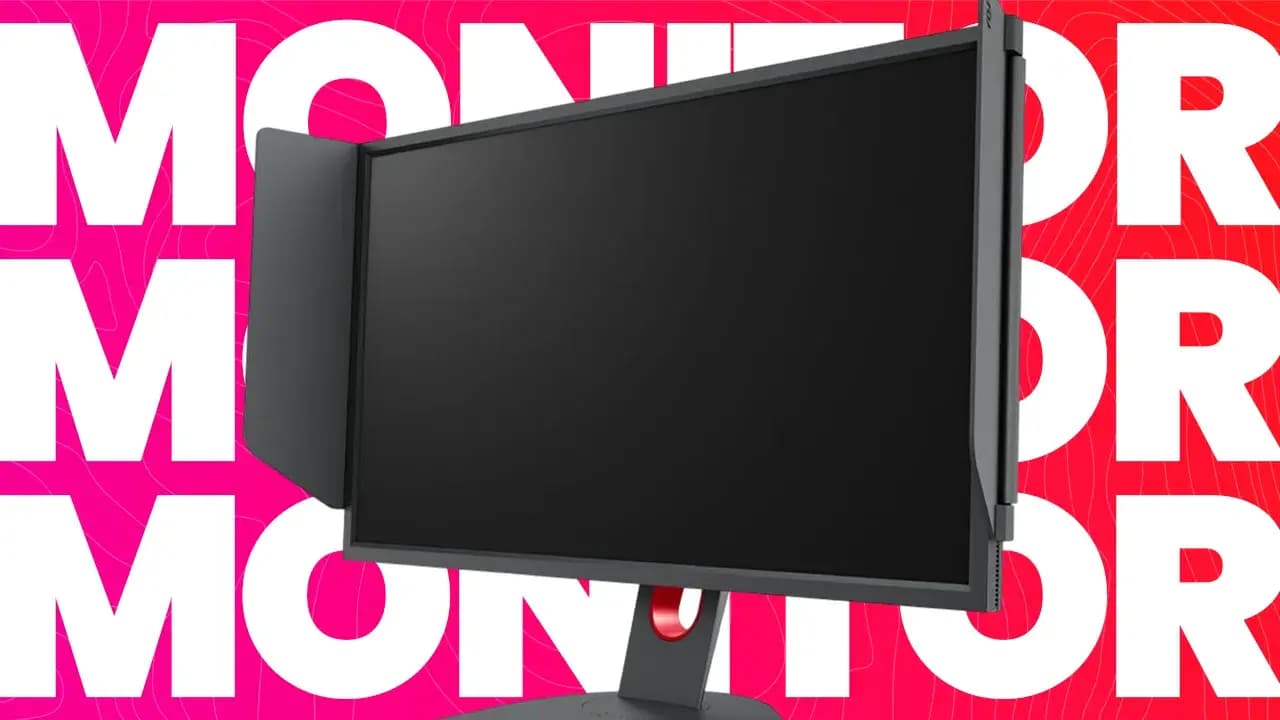
The best monitor for CS2 is usually a 24-25 inch gaming monitor with at least 240 Hz refresh rate, low input lag, fast pixel response, and good motion clarity. For serious competitive play, 240 Hz is the practical minimum, 360 Hz is a strong upgrade, and 400-540 Hz is for players who already have a PC powerful enough to push very high FPS consistently.
If you want the simplest recommendation: choose a 24.5-inch 1080p monitor with 240 Hz or higher refresh rate for pure CS2 performance. This size and resolution are popular because they keep everything readable, reduce eye travel, and make it easier to focus on crosshair placement, movement, and enemy models.
Current pro-player data also points in that direction. ProSettings’ CS2 monitor guide lists 24.5-inch, 1920×1080, 16:9, high-refresh TN monitors as the dominant competitive profile, with ZOWIE models heavily represented among tracked professional players.
What matters most in a CS2 monitor?
A good CS2 monitor should help you see opponents clearly, react quickly, and track motion without distracting blur. You do not need the best HDR, the highest 4K sharpness, or the most cinematic image. CS2 is a competitive tactical shooter, so speed and clarity matter more than visual luxury.
The most important monitor features for CS2 are:
- Refresh rate.
- Input lag.
- Pixel response time.
- Motion clarity.
- Screen size.
- Resolution.
- Panel type.
- Refresh rate stability.
- Good stand adjustment.
- Clear visibility in dark and bright areas.
From our expert perspective, the best CS2 monitor is not the one that looks most impressive in a store. It is the one that makes enemies easier to see, reduces motion blur, and gives you the most consistent feeling during duels.
BenQ Zowie XL2546K
One of the most popular monitors among professional CS2 players. It’s known for extremely low input lag and motion clarity. Perfect for players seeking a competitive edge in fast-paced situations.
-
Size: 24.5"
-
Resolution: Full HD (1920x1080)
-
Refresh Rate: 240 Hz
-
Response Time: 0.5 ms (GtG)
-
Panel Type: TN
ASUS ROG Swift 360Hz PG259QNR
One of the fastest monitors in the world, designed with esports in mind. Its NVIDIA Reflex Analyzer helps reduce system latency for more accurate aiming. Ideal for players demanding top responsiveness.
-
Size: 24.5"
-
Resolution: Full HD (1920x1080)
-
Refresh Rate: 360 Hz
-
Response Time: 1 ms (GtG)
-
Panel Type: Fast IPS
Alienware AW2523HF
A great balance between speed and image quality. Fast IPS panel with FreeSync Premium support delivers smooth action during intense moments. Its modern design and ergonomics make it perfect for long gaming sessions.
-
Size: 24.5"
-
Resolution: Full HD (1920x1080)
-
Refresh Rate: 360 Hz
-
Response Time: 0.5 ms (GtG)
-
Panel Type: Fast IPS
Acer Nitro XV252QF
This monitor is ideal for gamers looking for the highest frame rates at a good price. It offers up to 390 Hz (OC), making it one of the fastest on the market. Low input lag and an IPS panel provide a smooth and responsive CS2 experience.
-
Size: 24.5"
-
Resolution: Full HD (1920x1080)
-
Refresh Rate: 390 Hz (OC)
-
Response Time: 0.5 ms (GtG)
-
Panel Type: IPS
ViewSonic XG2431
Certified by Blur Busters, this monitor ensures crystal-clear motion. It shines in CS2 thanks to PureXP tech and low input lag. A perfect pick for those wanting smooth performance without breaking the bank.
-
Size: 24"
-
Resolution: Full HD (1920x1080)
-
Refresh Rate: 240 Hz
-
Response Time: 1 ms (MPRT)
-
Panel Type: IPS
MSI G274QPF-QD
A great combo of image quality and gaming performance. QHD resolution and Quantum Dot tech bring vivid, lifelike colors – great for multitasking beyond CS2. Fast response time and 170 Hz make it a strong gaming option.
-
Size: 27"
-
Resolution: QHD (2560x1440)
-
Refresh Rate: 170 Hz
-
Response Time: 1 ms (GtG)
-
Panel Type: Rapid IPS
AOC AGON PRO AG254FG
Designed for esports pros. With NVIDIA G-Sync and ULMB 2 support, it ensures blur-free, responsive gameplay. Customizable RGB lighting adds a cool touch to your setup.
-
Size: 24.5"
-
Resolution: Full HD (1920x1080)
-
Refresh Rate: 360 Hz
-
Response Time: 1 ms (GtG)
-
Panel Type: Fast IPS
LG UltraGear 27GN950-B
Perfect for players who value image quality alongside performance. With 4K resolution and HDR600, it delivers stunning visuals – if your PC can handle it. Despite its high resolution, it still offers 144 Hz and low latency.
-
Size: 27"
-
Resolution: 4K UHD (3840x2160)
-
Refresh Rate: 144 Hz
-
Response Time: 1 ms (GtG)
-
Panel Type: Nano IPS
Gigabyte M27Q X
Combines QHD clarity with 240 Hz smoothness – a great middle ground. Built-in KVM switch is handy for those using two devices. A versatile pick for CS2 and beyond.
-
Size: 27"
-
Resolution: QHD (2560x1440)
-
Refresh Rate: 240 Hz
-
Response Time: 1 ms (GtG)
-
Panel Type: SuperSpeed IPS
Dell S2522HG
A solid, affordable option for gamers. Offers 240 Hz, quick IPS panel, and ergonomic design. A no-frills monitor that gets the CS2 job done.
-
Size: 24.5"
-
Resolution: Full HD (1920x1080)
-
Refresh Rate: 240 Hz
-
Response Time: 1 ms (GtG)
-
Panel Type: IPS
Summary - Table
|
Model |
Size |
Resolution |
Refresh Rate |
|---|---|---|---|
|
ZOWIE XL2546K |
24.5" |
1920×1080 |
240 Hz |
|
ASUS ROG Swift 360Hz PG259QN |
24.5" |
1920×1080 |
360 Hz |
|
Alienware AW2524H |
24.5" |
1920×1080 |
500 Hz |
|
Acer Nitro XV252QF |
24.5" |
1920×1080 |
390 Hz |
|
ViewSonic XG2431 |
24" |
1920×1080 |
240 Hz |
|
Gigabyte M27Q X |
27" |
2560×1440 |
240 Hz |
|
LG UltraGear 27GP850-B |
27" |
2560×1440 |
180 Hz |
|
Samsung Odyssey G4 |
25" |
1920×1080 |
240 Hz |
|
AOC 24G2SPAE |
23.8" |
1920×1080 |
165 Hz |
|
iiyama G-Master GB2590HSU |
24.5" |
1920×1080 |
240 Hz |
Is 144 Hz enough for CS2?
144 Hz is playable in CS2, especially for casual players or beginners. It is much better than 60 Hz and gives a clearly smoother experience. If you are upgrading from a standard office monitor, 144 Hz or 165 Hz will feel like a huge improvement.
However, for serious CS2 grinding, 144 Hz is no longer the ideal competitive standard. The jump from 144 Hz to 240 Hz is noticeable, especially when clearing angles, tracking moving enemies, spraying, and reacting to fast peeks. If your PC can produce stable high FPS, a 240 Hz monitor is a much better long-term choice.
144 Hz makes sense if:
- You are a casual player.
- Your PC cannot reach high FPS.
- You have a limited budget.
- You mostly play matchmaking for fun.
- You are upgrading from 60 Hz.
It is less ideal if:
- You play Premier seriously.
- You play Faceit.
- You want better motion clarity.
- You already get 250+ FPS.
- You plan to improve competitively.
Is 240 Hz good for CS2?
Yes, 240 Hz is one of the best value points for CS2. It gives a very noticeable competitive upgrade over 144 Hz, while still being much more affordable than 360 Hz, 400 Hz, or 540 Hz monitors. For many players, 240 Hz is the sweet spot between price, smoothness, and real in-game benefit.
A 240 Hz monitor is good for:
- Competitive matchmaking.
- Premier Mode.
- Faceit.
- Riflers.
- AWPers.
- Entry players.
- Players with stable 240+ FPS.
- Anyone upgrading from 144 Hz.
If you want one monitor that makes sense for most CS2 players, 24.5-inch 1080p 240 Hz is still one of the safest choices.
Is 360 Hz worth it for CS2?
360 Hz is worth it if you already have a strong PC and you care about competitive performance. Compared with 240 Hz, 360 Hz can feel smoother during fast peeks, flicks, counter-strafing, and spray transfers. NVIDIA describes 360 Hz G-SYNC displays as 1.5 times faster than conventional 240 Hz displays, aimed at competitive gamers.
That does not mean every player needs 360 Hz. If your FPS often drops below 240, buying a 360 Hz monitor will not magically fix your game. The monitor can only display the frames your PC can deliver.
360 Hz makes sense if:
- Your PC can hold very high FPS.
- You already play seriously.
- You notice motion blur on 240 Hz.
- You want a smoother competitive feel.
- You are buying a premium esports setup.
360 Hz is less necessary if:
- You mostly play casually.
- Your FPS is unstable.
- You are on a tight budget.
- You also want high resolution for single-player games.
- You are still using entry-level hardware.
Is 400 Hz or 540 Hz worth it for CS2?
400 Hz and 540 Hz monitors are for highly competitive players, esports enthusiasts, and people with very strong PCs. They offer excellent motion clarity, but they are only worth it if your system can produce enough FPS and you can actually benefit from the extra smoothness.
For example, the BenQ ZOWIE XL2566X+ is a 24.1-inch 1080p TN esports monitor with a 400 Hz refresh rate, built around competitive performance and fast liquid crystal technology. ASUS also offers the ROG Swift Pro PG248QP, a 24.1-inch 1080p Esports-TN monitor with up to 540 Hz overclocked refresh rate, designed for professional gamers.
A 400-540 Hz monitor makes sense if:
- You have a high-end CPU and GPU.
- You can push extremely high FPS.
- You play CS2 as your main competitive game.
- You care about every small latency advantage.
- You accept the high price.
It does not make sense if:
- Your FPS is usually under 240.
- You mainly play casually.
- You want a monitor for cinematic games.
- You prefer 1440p or 4K visuals.
- Your budget would be better spent on PC upgrades.
1080p or 1440p for CS2?
For pure CS2 performance, 1080p is still the safest competitive resolution, especially on a 24-25 inch monitor. It is easier to run at very high FPS, keeps the image familiar for competitive players, and works well with both 16:9 and 4:3 stretched setups.
1440p can also be good, especially if you use your monitor for other games, work, content, or general browsing. A 27-inch 1440p monitor gives sharper image quality and more desktop space, but it is harder to drive at very high FPS.
Choose 1080p if:
- CS2 is your main game.
- You want maximum FPS.
- You prefer 24-25 inch monitors.
- You play 4:3 stretched.
- You want a classic esports setup.
Choose 1440p if:
- You also play other games.
- You want better image sharpness.
- You use the monitor for work.
- You have a strong PC.
- You prefer 27-inch screens.
My expert opinion: if your only priority is CS2, go 24.5-inch 1080p high refresh. If you want one monitor for CS2, work, and other games, 27-inch 1440p high refresh can be the better everyday choice.
24 inch or 27 inch monitor for CS2?
For CS2, most competitive players prefer 24-25 inches. This size keeps the whole screen easier to scan without moving your eyes too much. It also matches the classic esports monitor format used in many tournaments and pro setups.
A 27-inch monitor can still work well, especially at 1440p. It gives more image detail and can feel more immersive, but some players find it slightly harder to track the whole screen quickly.
24-25 inches is better if:
- You want a pure esports monitor.
- You sit close to the screen.
- You want less eye travel.
- You play 1080p.
- You want a tournament-style setup.
27 inches is better if:
- You want 1440p.
- You play other games too.
- You use the monitor for work.
- You prefer a larger image.
- You do not sit extremely close.
TN, IPS or OLED for CS2?
The best panel type depends on your priorities. In CS2, the main options are TN, Fast IPS, and OLED.
TN panels are still popular in pure esports monitors because they can offer very fast response times and strong motion clarity. ZOWIE’s high-end esports monitors still use TN because the focus is competitive performance, not cinematic image quality.
Fast IPS panels offer better colors and viewing angles than TN, while still being fast enough for most competitive players. They are great if you want a monitor for CS2 and everyday use.
OLED panels offer excellent response times, great contrast, and very clean motion, but they are usually more expensive and can come with burn-in considerations depending on the model and usage.
Simple breakdown:
- TN - best for classic esports motion clarity.
- Fast IPS - best balance for gaming and general use.
- OLED - best image quality and response, but usually expensive.
- VA - usually not the first choice for serious CS2 because dark transitions can be slower on many models.
Is OLED good for CS2?
Yes, OLED can be excellent for CS2 because of very fast pixel response and strong motion clarity. A 240 Hz, 280 Hz, or 360 Hz OLED monitor can feel extremely clean in motion. It also gives much better contrast than TN or IPS.
However, OLED is not automatically the best choice for every CS2 player. Many OLED monitors are 27-inch 1440p models, which are great for mixed use but not always the classic pro-style 24.5-inch 1080p setup. OLED monitors also tend to cost more.
OLED makes sense if:
- You want excellent motion clarity.
- You also play other games.
- You want better colors and contrast.
- You prefer 1440p.
- Your budget is higher.
A classic TN esports monitor may still make more sense if:
- You only care about CS2.
- You want 24.5-inch 1080p.
- You want tournament-style settings.
- You use static desktop elements for many hours.
- You want a simpler competitive monitor.
What refresh rate should you choose for CS2?
The best refresh rate depends on your FPS and budget. Do not buy a refresh rate your PC cannot support in real gameplay. A 360 Hz monitor is not useful if your CS2 FPS often drops to 140.
Practical refresh rate guide:
- 60 Hz - not recommended for CS2 today.
- 144 Hz / 165 Hz - good entry point.
- 240 Hz - best value for serious players.
- 280 Hz - good if priced close to 240 Hz.
- 360 Hz - strong premium competitive choice.
- 400 Hz+ - high-end esports choice.
- 540 Hz - elite-level setup if your PC can keep up.
For most players, the best realistic choices are 240 Hz or 360 Hz.
How much FPS do you need for a high-refresh CS2 monitor?
Ideally, your FPS should be close to or above your monitor refresh rate. For a 240 Hz monitor, try to keep CS2 around 240 FPS or higher. For 360 Hz, aim for 360 FPS or higher. For 400-540 Hz, you need a very strong system to fully benefit.
Practical targets:
- 144 Hz monitor - aim for 180+ FPS.
- 240 Hz monitor - aim for 240-300+ FPS.
- 360 Hz monitor - aim for 360-450+ FPS.
- 400 Hz monitor - aim for 400+ FPS.
- 540 Hz monitor - aim for 500+ FPS if possible.
You can still use a monitor even if your FPS is lower than the refresh rate, but you will not get the full benefit.
Best monitor for CS2 under a limited budget
If you have a limited budget, do not chase 360 Hz or OLED immediately. A good 240 Hz monitor will be a much better investment than a cheap high-refresh monitor with poor motion clarity, bad stand adjustment, or weak overdrive tuning.
Budget priorities:
- At least 144 Hz, preferably 240 Hz.
- Low input lag.
- Good response time performance.
- Adjustable stand.
- DisplayPort support.
- 24-25 inch screen.
- 1080p resolution.
- Reliable brand or well-reviewed model.
A budget CS2 monitor does not need luxury features. It needs to be fast, stable, and comfortable.
Best monitor for CS2 if you play seriously
If you play CS2 seriously, the safest recommendation is a 24.5-inch 1080p monitor with 240 Hz, 360 Hz, or higher refresh rate. This gives you the classic esports format, high FPS potential, and strong visibility.
Good serious-player choices include:
- 240 Hz ZOWIE-style esports monitors.
- 360 Hz 1080p esports monitors.
- 400 Hz ZOWIE XL2566X+.
- 540 Hz ASUS PG248QP-style monitors.
- 27-inch 1440p 360 Hz OLED if you want mixed use.
The best choice depends on whether CS2 is your only priority or just one of several games you play.
Best monitor for CS2 and other games
If you play CS2 but also enjoy single-player games, RPGs, shooters, racing games, or content creation, a 27-inch 1440p high-refresh monitor may be better than a pure 24.5-inch 1080p esports monitor.
For mixed use, look for:
- 27-inch size.
- 1440p resolution.
- 240 Hz or higher refresh rate.
- Fast IPS or OLED panel.
- Good color quality.
- Low input lag.
- Good motion clarity.
- Adaptive sync support.
This setup is less “tournament traditional” than 24.5-inch 1080p, but it is more versatile.
Best monitor settings for CS2
Buying a good monitor is only half of the setup. You also need to configure it correctly.
Check these settings:
- Set the correct refresh rate in Windows.
- Use DisplayPort if needed for maximum refresh rate.
- Enable the monitor’s highest refresh rate mode.
- Set the correct refresh rate in CS2.
- Disable unnecessary image processing.
- Use a fast or esports overdrive mode if it does not create too much ghosting.
- Adjust brightness so enemies are visible without washing out the image.
- Use a clear profile for competitive games.
- Avoid excessive sharpness.
- Make sure your FPS is stable.
A common mistake is buying a 240 Hz monitor and leaving it set to 60 Hz in Windows. Always check this after connecting a new monitor.
Should you use G-SYNC or FreeSync in CS2?
G-SYNC and FreeSync can make gameplay look smoother by reducing tearing and sync-related issues. However, competitive players often prioritize low latency and stable FPS over perfect visual smoothness.
For CS2, the best setting depends on your system and preference. Some players use adaptive sync with Reflex and FPS caps. Others prefer fixed high refresh with V-Sync off. The key is to test your setup and avoid settings that add noticeable input delay.
Practical advice:
- Use fullscreen mode.
- Enable NVIDIA Reflex if available.
- Test with V-Sync off first.
- Try G-SYNC or FreeSync if tearing bothers you.
- Cap FPS only if it improves stability.
- Avoid changing many settings at once.
Should you use motion blur reduction?
Some esports monitors offer motion blur reduction features, such as DyAc, ULMB, or similar technologies. These can improve motion clarity, but they may reduce brightness, change the feel of the image, or introduce artifacts depending on the monitor.
Motion blur reduction can help if:
- You play at high refresh rates.
- You track fast movement.
- You are sensitive to blur.
- The feature works well on your monitor.
- You accept reduced brightness.
It may be less useful if:
- You dislike the flicker.
- It makes the screen too dark.
- Your FPS is unstable.
- It creates visual artifacts.
- You prefer adaptive sync.
ZOWIE monitors are well-known in Counter-Strike partly because of their DyAc-style motion clarity features, while ASUS promotes ULMB 2 on the PG248QP as a motion clarity feature for esports use.
What monitor should beginners buy for CS2?
Beginners do not need a 540 Hz monitor. A good 144 Hz or 240 Hz display is enough to start playing comfortably. If the budget allows, 240 Hz is the better long-term choice.
Best beginner direction:
- 24-inch or 24.5-inch size.
- 1080p resolution.
- 144 Hz minimum.
- 240 Hz if budget allows.
- IPS or TN panel.
- Low input lag.
- Adjustable stand.
- DisplayPort support.
A beginner should avoid spending all the budget on a monitor if the PC cannot deliver good FPS. Sometimes upgrading CPU, GPU, RAM, or cooling will improve CS2 more than buying a higher refresh display.
What monitor should riflers use in CS2?
Riflers benefit from strong motion clarity, stable refresh rate, and low input lag. Spray control, counter-strafing, and target switching all feel better when the monitor shows motion clearly.
Good rifler monitor traits:
- 240 Hz or higher.
- Low input lag.
- Fast pixel response.
- 24-25 inch size.
- Clear enemy visibility.
- Good overdrive tuning.
- Stable FPS support.
- No distracting blur.
For riflers, 240 Hz is already very good, but 360 Hz or higher can make fast corrections feel cleaner if the PC can keep up.
What monitor should AWPers use in CS2?
AWPers need fast reaction time, clear motion, and low input lag. Holding angles, flicking, and reacting to shoulder peeks all benefit from a high-refresh monitor.
Good AWPer monitor traits:
- High refresh rate.
- Low input delay.
- Strong motion clarity.
- Good visibility at distance.
- Stable brightness and contrast.
- No excessive ghosting.
- Comfortable screen size.
- Clear crosshair visibility.
AWPers do not need a different monitor category than riflers. The same high-refresh esports monitors work well for both roles.
What monitors should you avoid for CS2?
Avoid monitors that prioritize office work, cinematic visuals, or casual gaming over speed. A beautiful 4K 60 Hz monitor can be great for movies and single-player games, but it is not ideal for CS2.
Avoid:
- 60 Hz monitors.
- Slow VA panels with visible smearing.
- TVs used as monitors.
- Monitors with high input lag.
- Cheap displays with poor stand adjustment.
- 4K monitors if your PC cannot push high FPS.
- Ultrawide monitors if you want a standard competitive setup.
- Monitors with unclear overdrive performance.
- Displays that cannot run their advertised refresh rate properly.
- Buying only for HDR or RGB.
CS2 rewards speed, clarity, and consistency.
Expert opinion: what monitor should you buy for CS2?
If CS2 is your main game and you want the safest competitive choice, buy a 24.5-inch 1080p 240 Hz or 360 Hz monitor. If your budget is higher and your PC is strong, consider 400 Hz or 540 Hz. If you also play other games and want better image quality, choose a 27-inch 1440p 240 Hz or 360 Hz OLED / Fast IPS monitor.
From our expert perspective, the smartest monitor for CS2 is the one your PC can actually support with stable FPS. A 540 Hz monitor is impressive, but it is wasted if your game runs at 180 FPS. A stable 240 Hz setup can feel better than an unstable high-end setup.
Best practical recommendations:
- Budget player - 144 Hz or 240 Hz 1080p.
- Serious CS2 player - 240 Hz or 360 Hz 24.5-inch 1080p.
- High-end esports player - 400 Hz or 540 Hz 1080p.
- Mixed-use gamer - 27-inch 1440p 240 Hz or 360 Hz.
- Visual-quality fan - OLED high-refresh monitor.
Summary
The best monitor for CS2 depends on how seriously you play, how strong your PC is, and whether you use the screen only for Counter-Strike or for everything. For pure competitive CS2, the safest choice is still a 24-25 inch 1080p monitor with 240 Hz or higher refresh rate. For more serious players, 360 Hz, 400 Hz, or 540 Hz can be worth it if the PC can deliver enough FPS.
Do not choose a monitor only because it has the highest number on the box. Look at refresh rate, motion clarity, input lag, panel type, size, resolution, and how well it matches your system. In CS2, a good monitor should make the game feel clear, fast, and predictable.
FAQ
What monitor is best for CS2?
For most competitive players, the best choice is a 24.5-inch 1080p monitor with 240 Hz or 360 Hz refresh rate. High-end players can consider 400 Hz or 540 Hz models.
Is 144 Hz enough for CS2?
144 Hz is playable and much better than 60 Hz, but 240 Hz is a stronger choice if you want to play CS2 more seriously.
Is 240 Hz good for CS2?
Yes. 240 Hz is one of the best value refresh rates for CS2 and is a strong upgrade over 144 Hz.
Is 360 Hz worth it for CS2?
Yes, if your PC can produce enough FPS and you play competitively. If your FPS is unstable or below 240, upgrade your PC first.
Is 1080p or 1440p better for CS2?
1080p is better for pure competitive CS2 because it is easier to run at very high FPS. 1440p is better if you also use the monitor for other games and work.
Is a 27-inch monitor too big for CS2?
Not necessarily, but most competitive players prefer 24-25 inches. A 27-inch monitor works well if you play 1440p and want a more versatile screen.
Is OLED good for CS2?
Yes, OLED can be excellent because of fast response and strong motion clarity. It is usually more expensive and often better for mixed gaming setups than pure tournament-style CS2.
What refresh rate should I use for CS2?
Use the highest refresh rate your monitor and PC can support consistently. For most players, 240 Hz is the best target, while serious competitive players can consider 360 Hz or higher.

I am a veteran player with over 20 years of experience, having been part of the Counter-Strike community since the early days of 1.6. As an expert in virtual economy and gameplay mechanics, I help you reach the next level by creating technical guides and tactical breakdowns, while providing data-driven insights into the CS2 skin market and sticker investments.